
How To Install Linux, Nginx, MySQL, PHP (LEMP stack) on Ubuntu
How To Install Linux, Nginx, MySQL, PHP (LEMP stack) on Ubuntu 관련


The LEMP software stack serves dynamic web pages and web applications written in PHP. This is an acronym that describes a Linux operating system, with an Nginx (pronounced like “Engine-X”) web server. The backend data is stored in the MySQL database and the dynamic processing is handled by PHP.
This guide demonstrates how to install a LEMP stack on an Ubuntu server. The Ubuntu operating system takes care of the Linux portion of the stack. We will describe how to get the rest of the components up and running.
Note
This tutorial primarily targets Ubuntu 22.04 LTS with PHP 8.1. For Ubuntu 24.04 LTS users, adjust PHP version references from php8.1-fpm to php8.3-fpm throughout the commands. Also, be sure to update any PHP-FPM socket paths in your Nginx configuration (e.g., use /run/php/php8.3-fpm.sock for Ubuntu 24.04).
Prerequisites
Use a non-root sudo user on Ubuntu with UFW firewall enabled. Follow our initial server setup guide for Ubuntu to configure this.
Step 1 – Installing the Nginx Web Server
To display web pages to site visitors, you’re going to employ Nginx, a high-performance web server. You’ll use the APT package manager to obtain this software.
Update your server’s package index, then install Nginx:
sudo apt update
Following that, run apt install to install Nginx:
sudo apt install nginx
When prompted, press Y and ENTER to confirm that you want to install Nginx. Once the installation is finished, the Nginx web server will be active and running on your Ubuntu server.
Verify that Nginx is running
You should see output indicating that Nginx is active:
sudo systemctl status nginx
#
# ● nginx.service - A high performance web server and a reverse proxy server
#      Loaded: loaded (/lib/systemd/system/nginx.service; enabled; vendor preset: enabled)
#      Active: active (running) since..
On Ubuntu, Nginx is configured to start running upon installation.
Allow HTTP traffic through the ufw firewall. Nginx registers several UFW application profiles upon installation. Check available profiles:
sudo ufw app list
#
# Available applications:
#   Nginx Full
#   Nginx HTTP
#   Nginx HTTPS
#   OpenSS
Enable the most restrictive profile that allows required traffic. Since SSL isn’t configured yet, allow only HTTP traffic on port 80:
Enable this by running the following and verify the firewall change.
This output displays that HTTP traffic is now allowed:
sudo ufw allow 'Nginx HTTP'
sudo ufw status
#
# Status: active
#
# To                         Action      From
# --                       ------    ----
# OpenSSH                    ALLOW       Anywhere
# Nginx HTTP                 ALLOW       Anywhere
# OpenSSH (v6)               ALLOW       Anywhere (v6)
# Nginx HTTP (v6)            ALLOW       Anywhere (v6
To test the Nginx server’s domain functionality, navigate to http://your_domain using your preferred web browser.
If you do not have a domain name pointed at your server and you do not know your server’s public IP address, you can find it by running either of the following commands:
ip addr show
hostname -I
This will print out a few IP addresses. You can try each of them in turn in your web browser.
As an alternative, you can check which IP address is accessible, as viewed from other locations on the internet:
curl -4 icanhazip.com
Write the address that you receive in your web browser and it will take you to Nginx’s default landing page:
http://<server_domain_or_IP
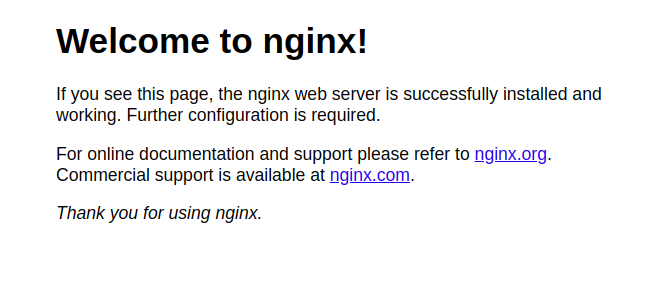
If you receive this page, it means you have successfully installed Nginx and enabled HTTP traffic for your web server.
Step 2 — Installing MySQL
Install MySQL to store and manage site data. MySQL is the standard database management system for PHP environments.
Again, use apt to acquire and install this software:
sudo apt install mysql-server
When prompted, confirm installation by pressing Y, and then ENTER.
After installation, run the security script to remove insecure defaults and lock down database access:
sudo mysql_secure_installation
You will be prompted with a question asking if you want to configure the VALIDATE PASSWORD PLUGIN.
Note
Enabling this feature is something of a judgment call. If enabled, passwords which don’t match the specified criteria will be rejected by MySQL with an error. It is safe to leave validation disabled, but you should always use strong, unique passwords for database credentials.
Answer Y for yes, or anything else to continue without enabling:
VALIDATE PASSWORD COMPONENT can be used to test passwords
and improve security. It checks the strength of password
and allows the users to set only those passwords which are
secure enough. Would you like to setup VALIDATE PASSWORD component?

Press y|Y for Yes, any other key for No:
If you answer “yes”, you’ll be asked to select a level of password validation. Keep in mind that if you enter 2 for the strongest level, you will receive errors when attempting to set any password that does not contain numbers, upper and lowercase letters, and special characters:
There are three levels of password validation policy:

LOW    Length >= 8
MEDIUM Length >= 8, numeric, mixed case, and special characters
STRONG Length >= 8, numeric, mixed case, special characters and dictionary              file

Please enter 0 = LOW, 1 = MEDIUM and 2 = STRONG:
Regardless of whether you chose to set up the VALIDATE PASSWORD PLUGIN, your server will ask you to select and confirm a password for the MySQL root user. This is not to be confused with the system root. The database root user is an administrative user with full privileges over the database system. Even though the default authentication method for the MySQL root user dispenses the use of a password, even when one is set, you should define a strong password here as an additional safety measure. We’ll talk about this in a moment.
If you enabled password validation, you’ll be shown the password strength for the root password you entered and your server will ask if you want to continue with that password. If you are happy with your current password, press Y for “yes” at the prompt:
Estimated strength of the password: 100
Do you wish to continue with the password provided?(Press y|Y for Yes, any other key for No) :
For the rest of the questions, press Y and hit the ENTER key at each prompt. This will remove some anonymous users and the test database, disable remote root logins, and load these new rules so that MySQL immediately respects the changes you have made.
When you’re finished, test if you’re able to log in to the MySQL console:
sudo mysql
This will connect to the MySQL server as the administrative database user root, which is inferred by the use of sudo when running this command. You should receive the following output:
Welcome to the MySQL monitor.  Commands end with ; or \g.
Your MySQL connection id is 10
Server version: 8.0.28-0ubuntu4 (Ubuntu)

Copyright (c) 2000, 2022, Oracle and/or its affiliates.

Oracle is a registered trademark of Oracle Corporation and/or its
affiliates. Other names may be trademarks of their respective
owners.

Type 'help;' or '\h' for help. Type '\c' to clear the current input statement.

mysql
To exit the MySQL console,write the following:
exit
Notice that you didn’t need to provide a password to connect as the root user, even though you have defined one when running the mysql_secure_installation script. This is because, when installed on Ubuntu, the default authentication method for the administrative MySQL user is auth_socket, rather than with a method that uses a password. This may seem like a security concern at first, but it makes the database server more secure since the only users allowed to log in as the root MySQL user are the system users with sudo privileges connecting from the console or through an application running with the same privileges. In practical terms, that means you won’t be able to use the administrative database root user to connect from your PHP application.
For increased security, it’s best to have dedicated user accounts with less expansive privileges set up for every database, especially if you plan on having multiple databases hosted on your server.
Note
Certain older releases of the native MySQL PHP library mysqlnd don’t support caching_sha2_authentication, the default authentication method for created users MySQL 8. For that reason, when creating database users for PHP applications on MySQL 8, you may need to make sure they’re configured to use mysql_native_password instead. We’ll demonstrate how to do that in Step 6.
Your MySQL server is now installed and secured. Next, you’ll install PHP, the final component in the LEMP stack.
Step 3 – Installing PHP
Install PHP to process code and generate dynamic content. Nginx requires an external program for PHP processing.
PHP-FPM (“fastCGI process manager”) handles PHP processing efficiently with additional security features, delivering better performance for PHP-based websites. Install php-fpm to route PHP requests from Nginx, and php-mysql to enable PHP-MySQL communication. Core PHP packages install automatically as dependencies.
To install the php8.1-fpm and php-mysql packages, run:
sudo apt install php8.1-fpm php-mysql
When prompted, press Y and ENTER to confirm the installation.
Verify that PHP-FPM is running. You should see output showing PHP-FPM is active:
sudo systemctl status php8.1-fpm
#
# ● php8.1-fpm.service - The PHP 8.1 FastCGI Process Manager
#      Loaded: loaded
#      Active: active (running
You can also check the PHP version:
php -v
#
# PHP 8.1.x (cli) (built: ...)
# Copyright (c) The PHP Group
# Zend Engine v4.1.
Configure Nginx to use these PHP components.
Step 4 — Configuring Nginx to Use the PHP Processor
Create Nginx server blocks (similar to Apache virtual hosts) to encapsulate configuration and host multiple domains on one server. This guide uses your_domain as an example domain name.
Info
To learn more about setting up a domain name with DigitalOcean, read our introduction to DigitalOcean DNS.
On Ubuntu 22.04, Nginx enables one default server block serving documents from /var/www/html. For multiple sites, create a directory structure within /var/www for your_domain, leaving /var/www/html as the default fallback directory.
Create the root web directory for your_domain as follows:
sudo mkdir /var/www/your_domain
Next, assign ownership of the directory with the $USER environment variable, which will reference your current system user:
sudo chown -R $USER:$USER /var/www/your_domain
Then, open a new configuration file in Nginx’s sites-available directory using your preferred command-line editor. Here, we’ll use nano:
sudo nano /etc/nginx/sites-available/your_domain
This will create a new blank file. Insert the following bare-bones configuration:
server {
    listen 80;
    server_name your_domain www.your_domain;
    root /var/www/your_domain;

    index index.html index.htm index.php;

    location / {
        try_files $uri $uri/ =404;
    }

    location ~ .php$ {
        include snippets/fastcgi-php.conf;
        fastcgi_pass unix:/run/php/php8.1-fpm.sock;
     }

    location ~ /.ht {
        deny all;
    }
}
Here’s what each of these directives and location blocks do:
listen— Defines what port Nginx will listen on. In this case, it will listen on port80, the default port for HTTP.root— Defines the document root where the files served by this website are stored.index— Defines in which order Nginx will prioritize index files for this website. It is a common practice to listindex.htmlfiles with higher precedence thanindex.phpfiles to allow for quickly setting up a maintenance landing page in PHP applications. You can adjust these settings to better suit your application needs.server_name— Defines which domain names and/or IP addresses this server block should respond for. Point this directive to your server’s domain name or public IP address.location /— The first location block includes atry_filesdirective, which checks for the existence of files or directories matching a URL request. If Nginx cannot find the appropriate resource, it will return a 404 error.location ~ .php$— This location block handles the actual PHP processing by pointing Nginx to thefastcgi-php.confconfiguration file and thephp8.1-fpm.sockfile, which declares what socket is associated withphp8.1-fpm.location ~ /.ht— The last location block deals with.htaccessfiles, which Nginx does not process. By adding thedeny alldirective, if any.htaccessfiles happen to find their way into the document root, they will not be served to visitors.
When you’re done editing, save and close the file. If you’re using nano, you can do so by pressing CTRL+X and then Y and ENTER to confirm.
Activate your configuration by linking to the configuration file from Nginx’s sites-enabled directory:
sudo ln -s /etc/nginx/sites-available/your_domain /etc/nginx/sites-enabled/
Then, unlink the default configuration file from the /sites-enabled/ directory:
sudo unlink /etc/nginx/sites-enabled/default
Note
If you ever need to restore the default configuration, you can do so by recreating the symbolic link, like the following:
sudo ln -s /etc/nginx/sites-available/default /etc/nginx/sites-enabled/
This will tell Nginx to use the configuration next time it is reloaded. You can test your configuration for syntax errors by running the following:
sudo nginx -t
If any errors are reported, go back to your configuration file to review its contents before continuing.
When you are ready, reload Nginx to apply the changes:
sudo systemctl reload nginx
Your new website is now active, but the web root /var/www/your_domain is still empty. Create an index.html file in that location so that you can test that your new server block works as expected:
nano /var/www/your_domain/index.html
Include the following content in this file:
<html>
  <head>
    <title>your_domain website</title>
  </head>
  <body>
    <h1>Hello World!</h1>

    <p>This is the landing page of <strong>your_domain</strong>.</p>
  </body>
</html
Now go to your browser and access your server’s domain name or IP address, as listed within the server_name directive in your server block configuration file:
http://server_domain_or_I
You’ll receive a page like the following:
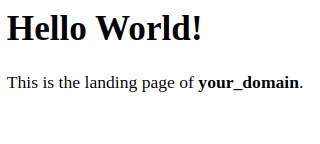
If you receive this page, it means your Nginx server block is working as expected.
You can leave this file in place as a temporary landing page for your application until you set up an index.php file to replace it.
Warning
After adding your index.php file, make sure to remove or rename the index.html file from your document root. If both files exist, Nginx will serve index.html by default, and your PHP page will not be displayed—this is a common source of confusion for new users.
Your LEMP stack is now fully configured. In the next step, you’ll create a PHP script to test that Nginx is in fact able to handle .php files within your newly configured website.
Step 5 –Testing PHP with Nginx
Your LEMP stack should now be completely set up. You can test it to validate that Nginx can correctly hand .php files off to your PHP processor.
You can do this by creating a test PHP file in your document root. Open a new file called info.php within your document root in your preferred text editor:
nano /var/www/your_domain/info.php
Add the following lines into the new file. This is valid PHP code that will return information about your server:
<?php
phpinfo()
When you are finished, save and close the file.
You can now access this page in your web browser by visiting the domain name or public IP address you’ve set up in your Nginx configuration file, followed by /info.php:
http://server_domain_or_IP/info.php
You will receive a web page containing detailed information about your server:

After checking the relevant information about your PHP server through that page, it’s best to remove the file you created as it contains sensitive information about your PHP environment and your Ubuntu server. You can use rm to remove that file:
sudo rm /var/www/your_domain/info.php
You can always regenerate this file if you need it later.
Step 6 — Testing Database Connection from PHP (Optional)
If you want to test whether PHP is able to connect to MySQL and execute database queries, you can create a test table with dummy data and query for its contents from a PHP script. Before doing so, you need to create a test database and a new MySQL user properly configured to access it.
Note
Certain older releases of the native MySQL PHP library mysqlnd don’t support caching_sha2_authentication, the default authentication method for MySQL 8, you may need to make sure they’re configured to use mysql_native_password instead.
We’ll create a database named example_database and a user named example_user, but you can replace these names with different values.
First, connect to the MySQL console using the root account:
sudo mysql
To create a new database, run the following command from your MySQL console:
CREATE DATABASE example_database;
Now you can create a new user and grant them full privileges on the custom database you’ve created.
The following command creates a new user named example_user, using mysql_native_password as the default authentication method. We’re defining this user’s password as password, but you should replace this value with a secure password of your own choosing.
CREATE USER 'example_user'@'%' IDENTIFIED WITH mysql_native_password BY 'password';
Now we need to give this user permission over the example_database database:
GRANT ALL ON example_database.* TO 'example_user'@'%';
This will give the example_user user full privileges over the example_database database while preventing this user from creating or modifying other databases on your server.
Now exit the MySQL shell with the following command:
exit
You can test if the new user has the proper permissions by logging in to the MySQL console again, this time using the custom user credentials. Notice the -p flag in this command, which will prompt you for the password used when creating the example_user user:
mysql -u example_user -p
After logging in to the MySQL console, confirm that you have access to the example_database database.
This will return the following output:
SHOW DATABASES;
--
-- +--------------------+
-- | Database           |
-- +--------------------+
-- | example_database   |
-- | information_schema |
-- +--------------------+
-- 2 rows in set (0.000 sec
Next, we’ll create a test table named todo_list. From the MySQL console, run the following statement:
CREATE TABLE example_database.todo_list (
  item_id INT AUTO_INCREMENT,
  content VARCHAR(255),
  PRIMARY KEY(item_id)
);
Insert a few rows of content in the test table. You might want to repeat the next command a few times, using different values:
INSERT INTO example_database.todo_list (content) VALUES ("My first important item");
To confirm that the data was successfully saved to your table.
Your output should display as follows:
SELECT * FROM example_database.todo_list;
--
-- +---------+--------------------------+
-- | item_id | content                  |
-- +---------+--------------------------+
-- |       1 | My first important item  |
-- |       2 | My second important item |
-- |       3 | My third important item  |
-- |       4 | and this one more thing  |
-- +---------+--------------------------+
-- 4 rows in set (0.000 sec)
After confirming that you have valid data in your test table, you can exit the MySQL console:
exit
Now you can create the PHP script that will connect to MySQL and query for your content. Create a new PHP file in your custom web root directory using your preferred editor. We’ll use nano for that:
nano /var/www/your_domain/todo_list.php
The following PHP script connects to the MySQL database and queries for the content of the todo_list table, exhibiting the results in a list. If there’s a problem with the database connection, it will throw an exception.
Add the following content to your todo_list.php script:
<?php
$user = "example_user";
$password = "password";
$database = "example_database";
$table = "todo_list";

try {
  $db = new PDO("mysql:host=localhost;dbname=$database", $user, $password);
  echo "<h2>TODO</h2><ol>";
  foreach($db->query("SELECT content FROM $table") as $row) {
    echo "<li>" . $row['content'] . "</li>";
  }
  echo "</ol>";
} catch (PDOException $e) {
    print "Error!: " . $e->getMessage() . "<br/>";
    die();
Save and close the file when you’re done editing.
You can now access this page in your web browser by visiting the domain name or public IP address configured for your website, followed by /todo_list.php:
http://server_domain_or_IP/todo_list.ph
You should receive a page like the following, showing the content you’ve inserted in your test table:

That means your PHP environment is ready to connect and interact with your MySQL server.
Frequently Asked Questions
What is the LEMP stack used for?
The LEMP stack hosts dynamic PHP-based websites and applications including WordPress, Laravel, Magento, Drupal, and custom PHP projects. It’s particularly effective for high-traffic sites requiring efficient concurrent connection handling.
What is the difference between LEMP and LAMP stacks?
LEMP uses Nginx, which handles connections asynchronously with an event-driven architecture—efficient for concurrent users. LAMP uses Apache, which traditionally creates a thread per request (though modern Apache supports event-driven modes). LEMP generally offers better performance for static content and high-concurrency scenarios, while LAMP provides easier .htaccess configuration and broader module support.
Which Ubuntu version should I use for LEMP?
Ubuntu 22.04 LTS is the primary target for this guide, featuring PHP 8.1, MySQL 8.0, and Nginx with long-term support. Ubuntu 24.04 LTS (latest release) includes PHP 8.3 by default and works with this guide by adjusting PHP-FPM socket paths and version numbers accordingly.
How do I install the LEMP stack on Ubuntu 24.04?
Follow these core steps:
- Install Nginx:
sudo apt install nginx - Install MySQL:
sudo apt install mysql-server - Run MySQL security script:
sudo mysql_secure_installation - Install PHP-FPM:
sudo apt install php-fpm php-mysql - Configure Nginx server block with PHP-FPM integration
- Test with
info.phpand database connection
See full walkthrough in Steps 1-6 above.
What version of PHP should I install with Nginx and MySQL?
Use your Ubuntu version’s default PHP for best compatibility:
- Ubuntu 22.04: PHP 8.1 (installed via
php8.1-fpm) - Ubuntu 24.04: PHP 8.3 (adjust commands to
php8.3-fpmfor this version)
Both versions work excellently with Nginx and MySQL 8.0, support modern frameworks, and receive active security updates.
How do I configure Nginx to process PHP files?
Add a location ~ .php$ block to your Nginx server configuration that routes PHP requests to PHP-FPM via Unix socket:
location ~ .php$ {
    include snippets/fastcgi-php.conf;
    fastcgi_pass unix:/run/php/php8.1-fpm.sock;
    fastcgi_param SCRIPT_FILENAME $document_root$fastcgi_script_name;
    include fastcgi_params;
}
Adjust the socket path based on your PHP version, test with sudo nginx -t, and reload with sudo systemctl reload nginx.
Why do I get a “502 Bad Gateway” error after installing PHP-FPM?
502 errors indicate Nginx cannot communicate with PHP-FPM. Common causes:
- PHP-FPM not running: Check with
sudo systemctl status php8.1-fpmand start if needed - Wrong socket path: Verify
/run/php/php8.1-fpm.sockexists and matches your Nginx config - Permissions issue: Ensure Nginx user (www-data) can access the socket
- PHP-FPM configuration error: Check logs at
/var/log/php8.1-fpm.log
Solution: Restart both services:
sudo systemctl restart php8.1-fpm ngin
How do I secure MySQL after installation?
Run the built-in security script:
sudo mysql_secure_installatio
Follow prompts to:
- Enable password validation plugin
- Set strong root password
- Remove anonymous users
- Disable remote root login
- Remove test database
- Reload privileges
For application databases, create dedicated users with limited privileges instead of using the root account.
Can I run multiple websites on one LEMP server?
Yes, create separate Nginx server blocks for each domain:
- Create directory:
sudo mkdir -p /var/www/second_domain - Create server block:
sudo nano /etc/nginx/sites-available/second_domain - Configure with unique
server_nameandrootdirectives - Enable:
sudo ln -s /etc/nginx/sites-available/second_domain /etc/nginx/sites-enabled/ - Test and reload:
sudo nginx -t && sudo systemctl reload nginx
Each site can have separate PHP settings and database users.
How do I upgrade PHP to a newer version?
Ubuntu package upgrades handle minor versions automatically. For major version upgrades:
sudo add-apt-repository ppa:ondrej/php
sudo apt update
sudo apt install php8.3-fpm php8.3-mysql -y
Update Nginx config socket path to /run/php/php8.3-fpm.sock. Test and reload Nginx. (Optionally remove old version: sudo apt purge php8.1-fpm)
Always test in staging before upgrading production systems.
Troubleshooting Common Issues
502 Bad Gateway Error
The most common LEMP stack issue occurs when Nginx cannot communicate with PHP-FPM:
sudo systemctl status php8.1-fpm  # Check PHP-FPM Status:
ls -la /run/php                   # Verify Socket Path:
Expected output should show php8.1-fpm.sock file.
Common Fixes
- Restart PHP-FPM:
sudo systemctl restart php8.1-fpm - Check Nginx server block socket path matches actual PHP-FPM socket
- Verify file permissions:
sudo chown www-data:www-data /run/php/php8.1-fpm.sock
Permission Denied Errors
# Fix web directory permissions
sudo chown -R www-data:www-data /var/www/your_domain
sudo chmod -R 755 /var/www/your_domai
MySQL Connection Issues
Reset MySQL root password:
sudo mysql
ALTER USER 'root'@'localhost' IDENTIFIED WITH mysql_native_password BY 'new_password';
FLUSH PRIVILEGES;
EXIT
Check MySQL service:
sudo systemctl status mysq
PHP Not Processing
php -m | grep -E 'mysql|fpm'.   # Verify PHP modules:

# Check PHP-FPM configuration:
sudo nginx -t
sudo php-fpm8.1 -
Common Fixes
- Verify
index.phpis listed in Nginxindexdirective - Check file exists:
ls -la /var/www/your_domain/ - Review Nginx error logs:
sudo tail -f /var/log/nginx/error.log
Conclusion
In this guide, you built a flexible foundation for serving PHP websites and applications to your visitors, using Nginx as a web server and MySQL as the database system. You can do this with an Apache web server as well, check out our tutorial on How To Install Linux, Apache, MySQL, PHP (LAMP) stack on Ubuntu. You can also secure your site with Let’s Encrypt, which provides free, trusted certificates. Learn how to do this with our guide on Let’s Encrypt for Apache.